
Configuring Auto-Throws in Pokémon GO™


After pairing your Ultra Mod: MAX with the Pokémon GO™ app, you’ll need to adjust the Accessory Device Settings. These settings control how your device throws Poké Balls and whether the mod can correctly auto-throw Great and Ultra Balls.
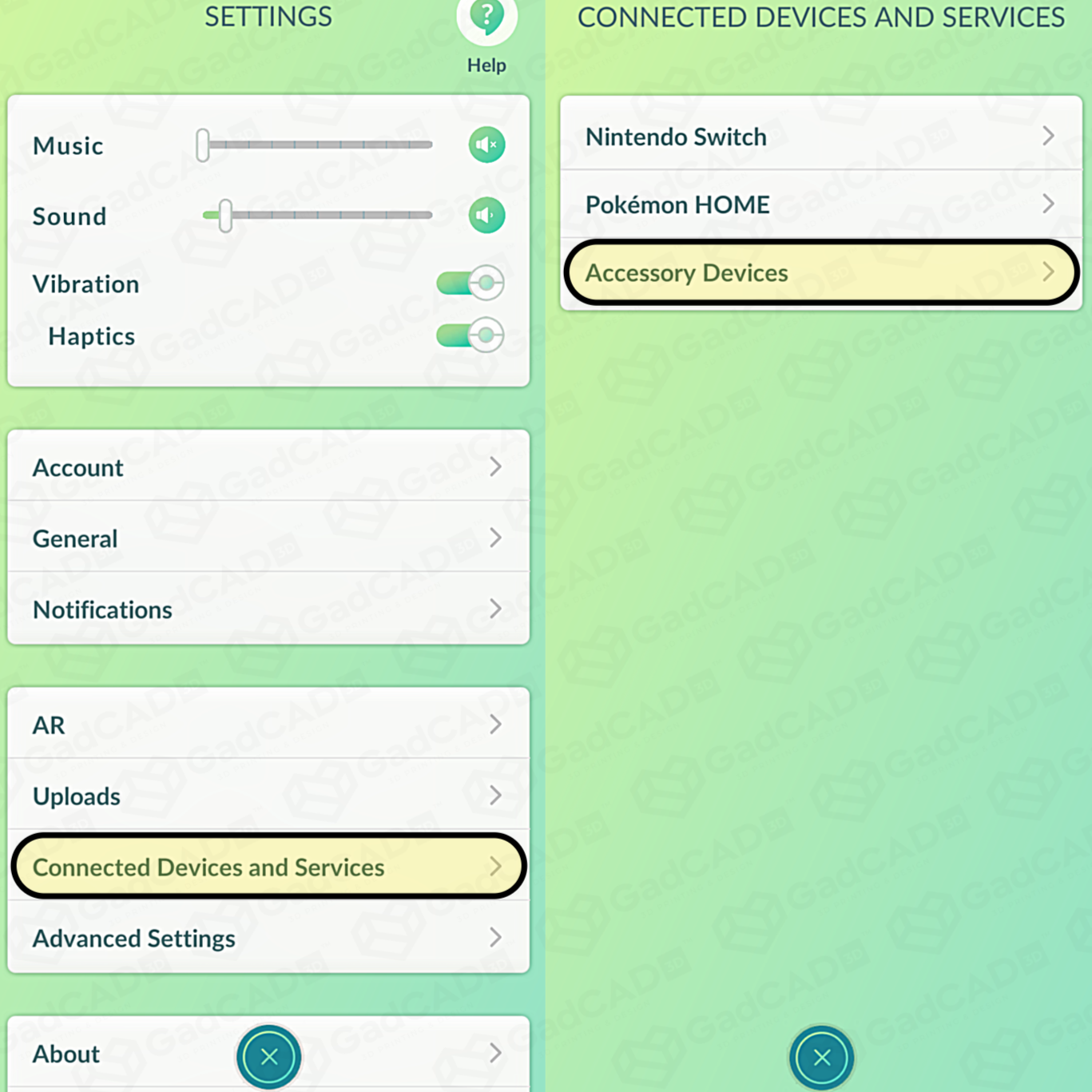
Step 1: Open Accessory Device Settings
-
Launch Pokémon GO™.
-
Tap the Poké Ball icon at the bottom of the screen to open the main menu.
-
Tap Settings in the top right corner.
-
Scroll down and tap Connected Devices and Services.
-
Tap Accessory Devices.
-
If you haven't already, pair and connect your Pokémon GO Plus+ device.
Step 2: Configure Throw Settings
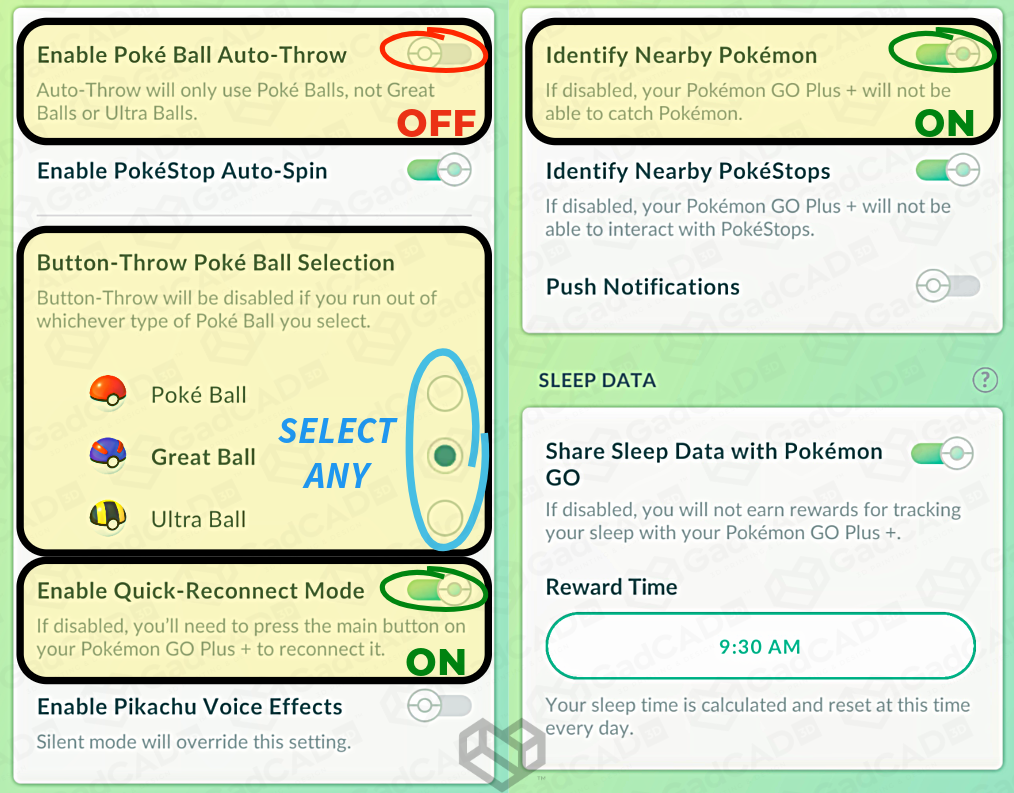
Within the device settings menu, you will see several toggle options:
-
❌ Turn OFF "Enable Poké Ball Auto-throws"
-
If this setting is enabled, the app will force all throws to use standard Poké Balls only, overriding your Ultra Mod: MAX’s ability to auto-throw anything else.
-
-
✅ Choose any option under "Button-Throw Poké Ball Selection"
-
Make sure to have plenty in your bag!
-
-
✅ Turn ON "Enable Quick-Reconnect Mode"
-
This ensures you don't need to hold the device and press the main button each time you want to reconnect.
-
Step 3: Test and GO!
-
Try encountering a few wild Pokémon to test the configuration.
-
If set correctly, your Ultra Mod: MAX will now automatically throw your selected ball type hands-free.
- Happy hunting! :)
Notes
-
If you want your device to ignore nearby Pokémon and only spin Poke Stops, turn OFF the "Identify Nearby Pokémon" option further down in Accessory Device Settings.
- This can be helpful if your Pokémon storage is full and/or your inventory is low on Poké Balls.
-
Auto-catchers will not recognize daily local spawns (the one-off Pokémon with a pulsing aura that spawns near you at login or midnight). These must be caught manually.
-
Auto-throws cannot use berries or land “Nice/Great/Excellent” bonuses — all automated throws count as standard hits.
Troubleshooting
-
If your device is only throwing standard Poké Balls, double-check that the "Enable Poké Ball Auto-throws" option is set to OFF.
-
If nearby Pokémon are detected but not caught, possible causes include:
-
Inventory is out of your selected ball type.
-
Pokémon storage is full.
-
Traveling too fast (> ~10–15 mph).
-
Poor network connection or GPS drift.
-
- If you're still having trouble, please contact GadCAD 3D for support!
Disclaimer
Ultra Mod: MAX is an unofficial, third-party modification of the Pokémon GO Plus +™ device, exclusively offered by GadCAD 3D. It is not affiliated with, endorsed by, or supported by Nintendo®, Niantic, Inc., The Pokémon Company™, Creatures, Inc., or Game Freak, Inc. Use at your own discretion.


